Schedule Text and Emails for later use
** One really cool new premium feature in Hit Em Up Standard and above is scheduled messages.**
You can schedule a message to go out at a later time and be reminded to send that message when it comes time.
Schedule a Message Video Tutorial
How to schedule texts and emails in Hit Em Up?
Set a Time
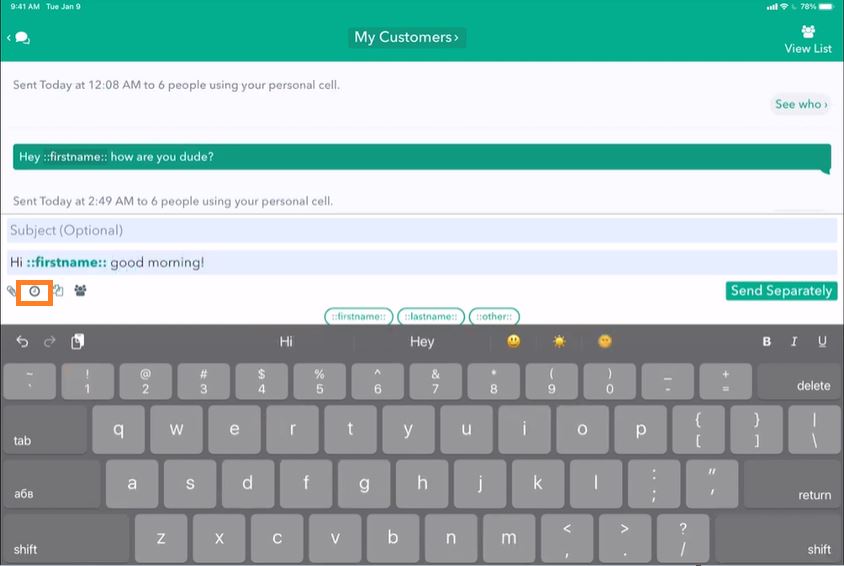
Select an existing group (My Customers) and write a message. Then, push the little clock icon.
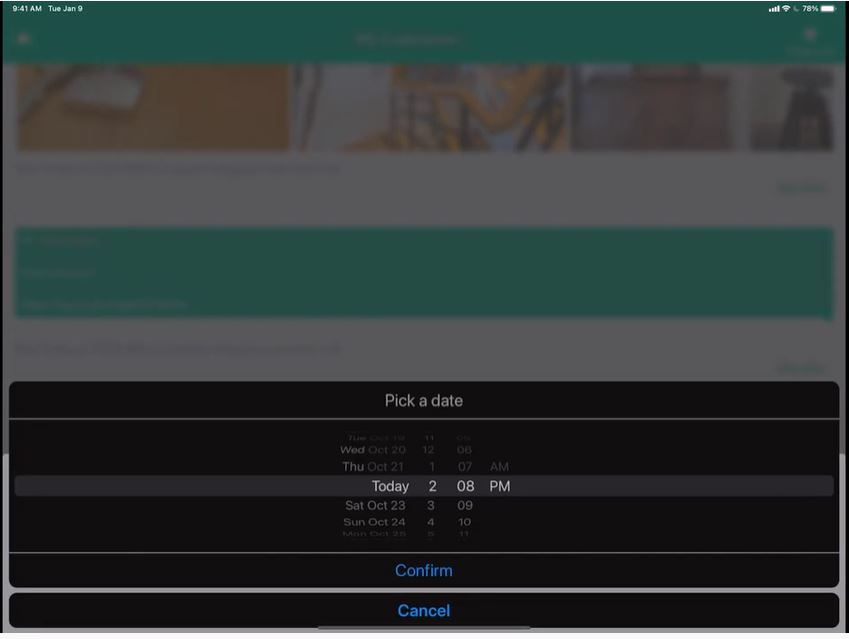
Set the time, click Confirm and Save.
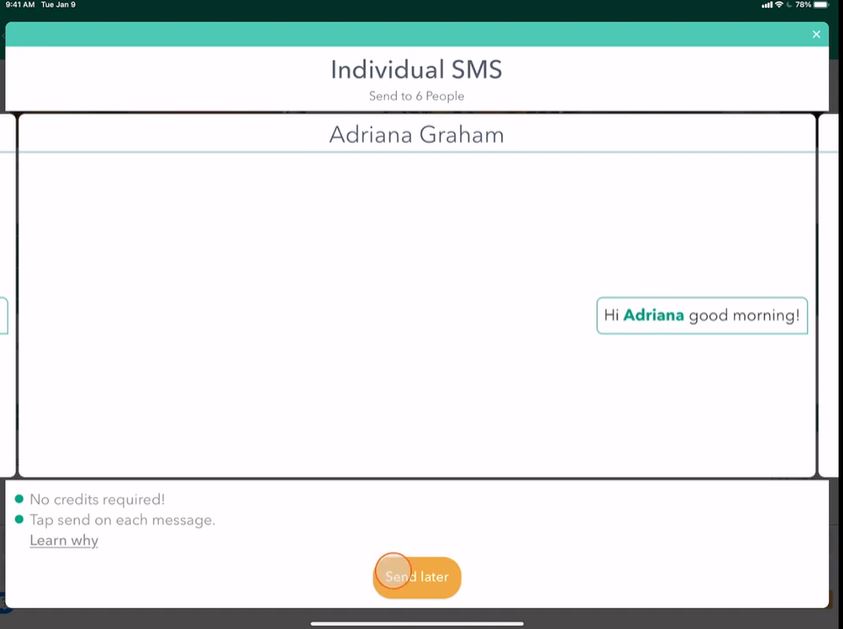
Click Send later. You can also see a preview of your message.
Schedule more messages
We can schedule more messages for the future as well.
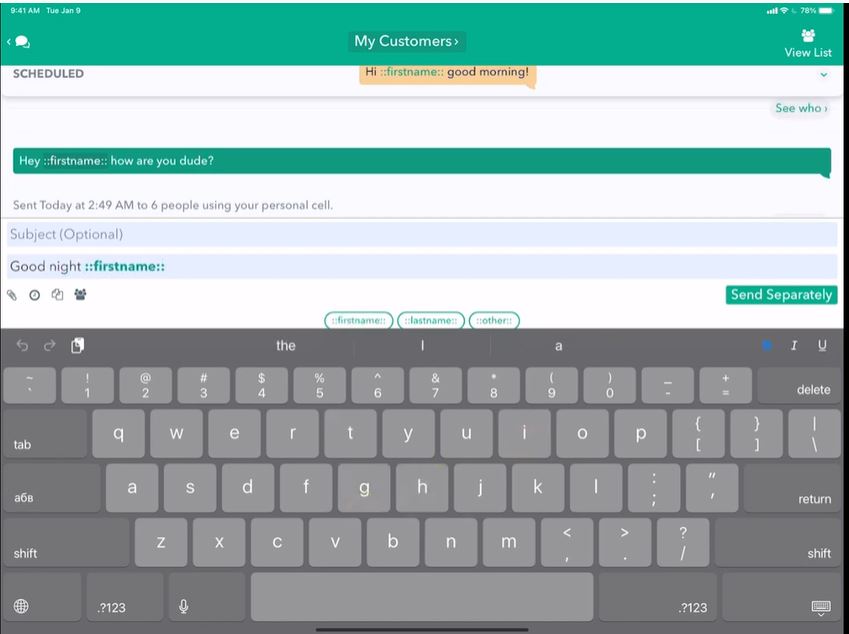
Set this one to go out tomorrow at 10:00 p.m. Hit Save. Send later. If we pull down from the top, we see two messages scheduled to go out to this group, one in the morning and one at night.
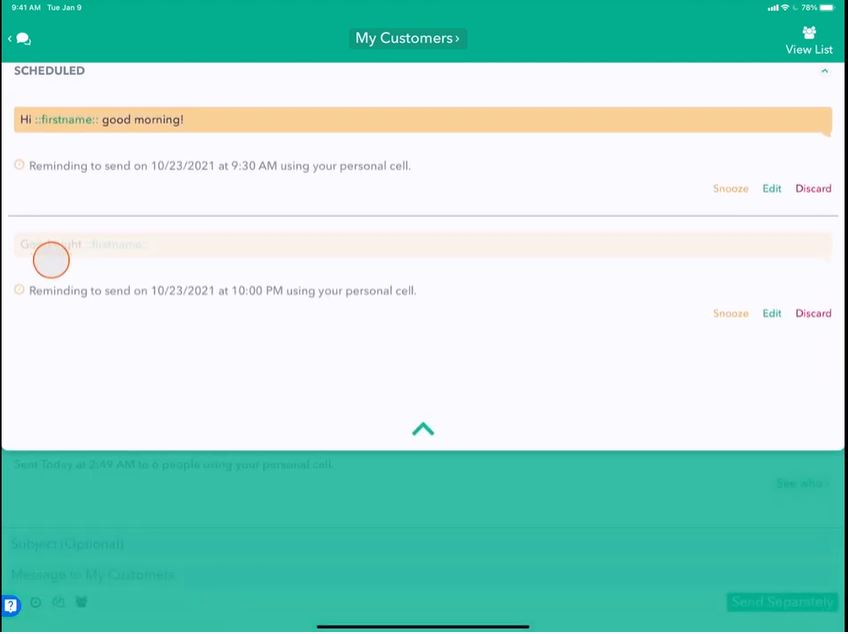
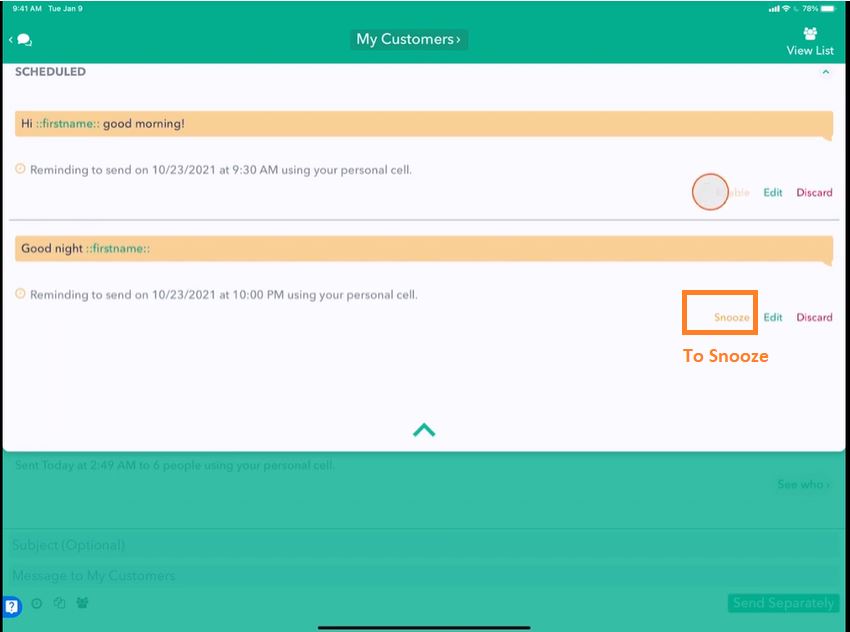
Snooze Notification
Tap the Snooze button if we don't want to get that notification.
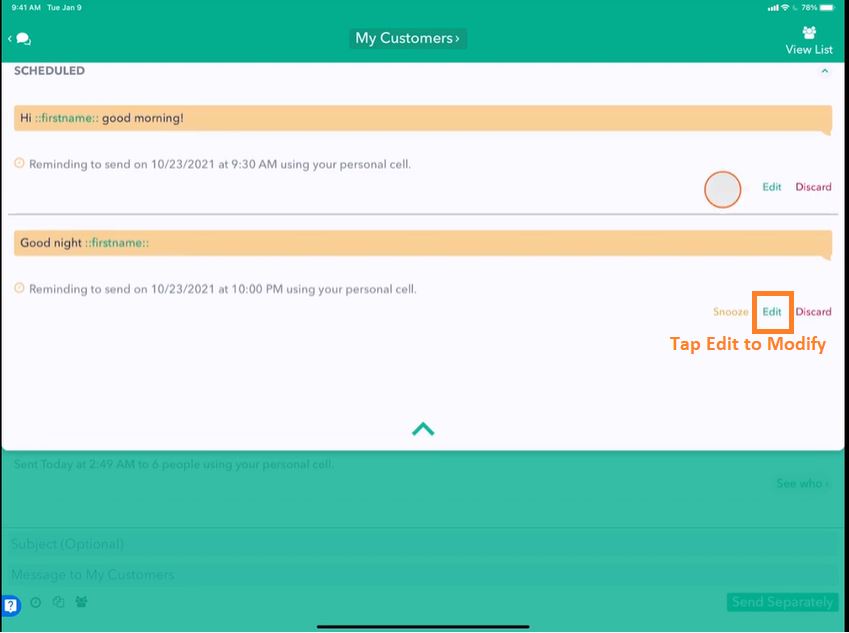
Edit a Scheduled Message
Tap Edit to modify your message or add a little emojis. Hit the clock icon and save again. Select the time. Confirm. Save. Send later.
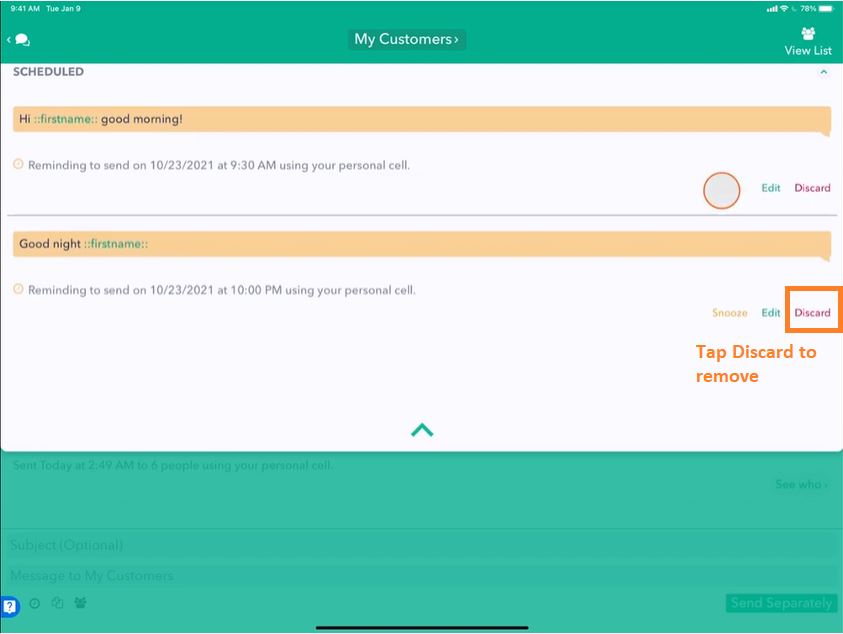
Discard a Scheduled Message
Tap the Discard button if you want to discard a message.
Ways to View Scheduled Messages
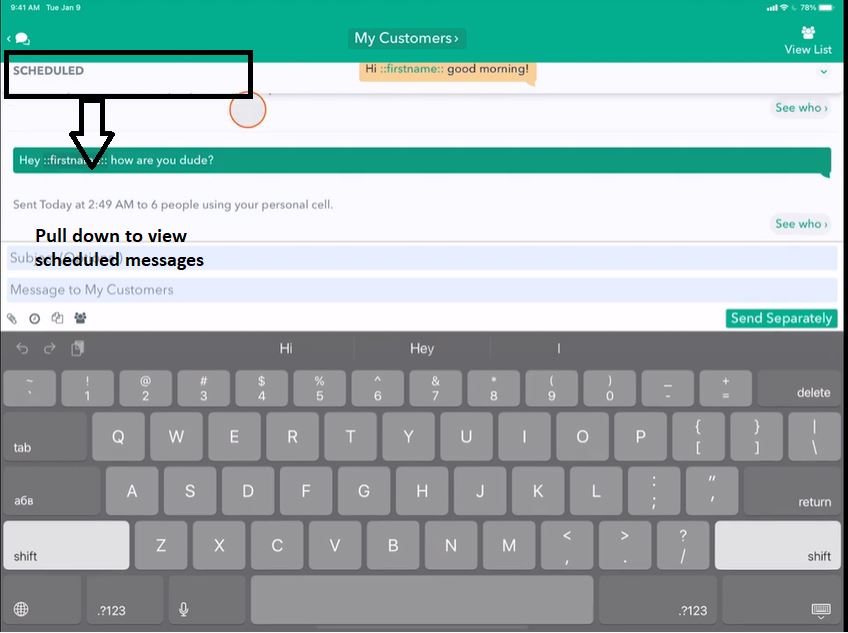
View Scheduled Messages from the popup dialog.
When you schedule a message, you will see this popup dialog at the top. Pull it down to view scheduled messages.
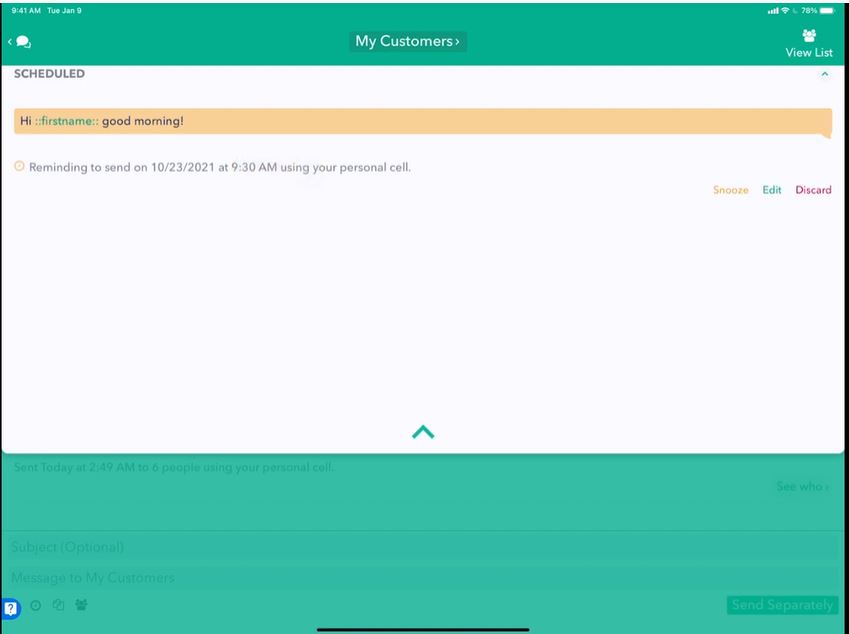
Here we can see there are messages scheduled to go out tomorrow at 09:30 a.m.
View Scheduled Messages in Activity panel
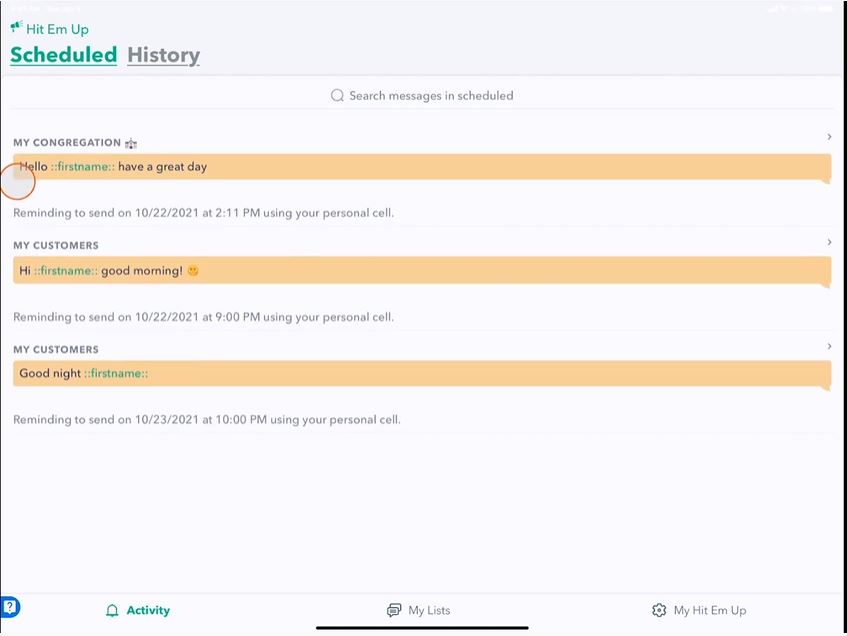
You can see all your messages here in the Activity panel, and here we see that we have two scheduled messages to my customers.
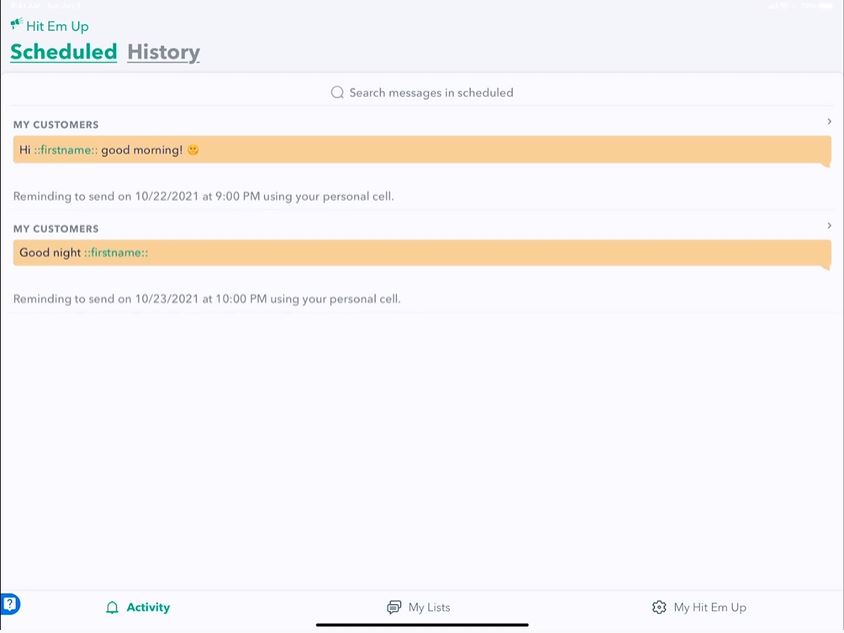
It's sorted by the order in which they'll be sent. So we can just see the messages which are upcoming here in the scheduled panel.
Notifications
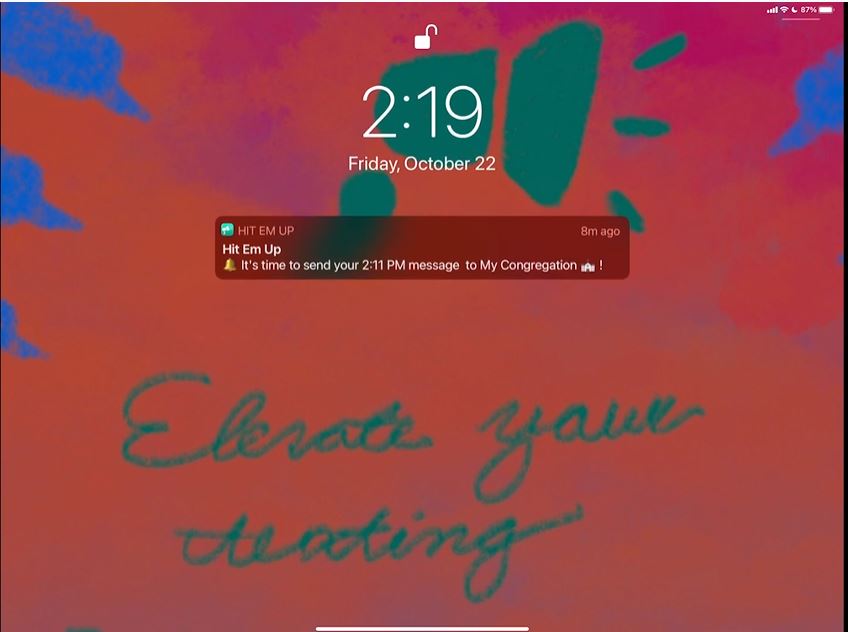
What will happen is our device, whether it's a Mac, iPad, iPhone, or Android, will send us a push notification when it's time to send, and we'll reenter the app at that exact time.
Notification to Send the Message
When it's time to send your message, you'll get a notification that looks just like this.
Send the Scheduled Message
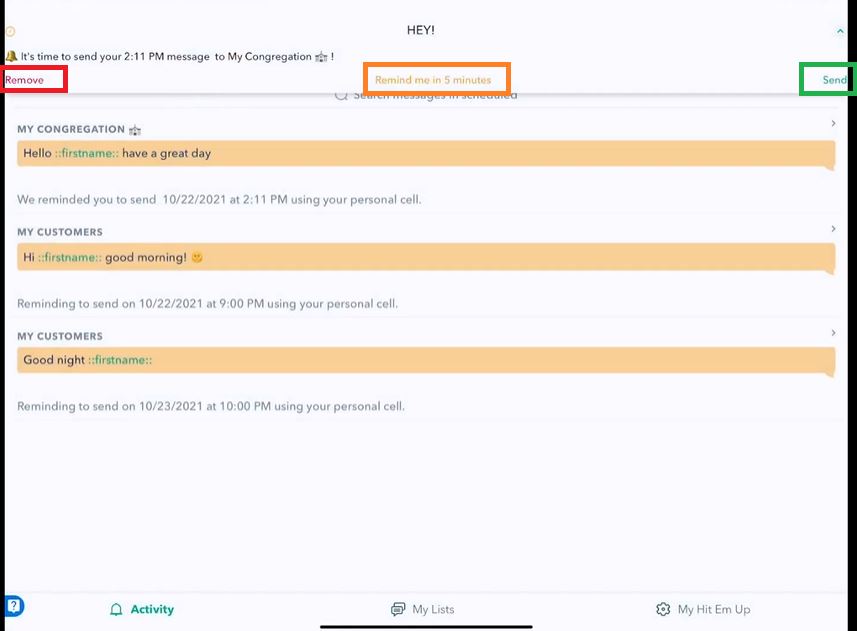
So I can tap on the notification, and in Hit EM Up, we get a little panel on whatever screen you're on that says it's time to send. You can remind yourself to send in five minutes or send right now by pushing the send button. Push Send, and that's it. It starts sending your messages when you press send. 😃
View Past Messages in History panel
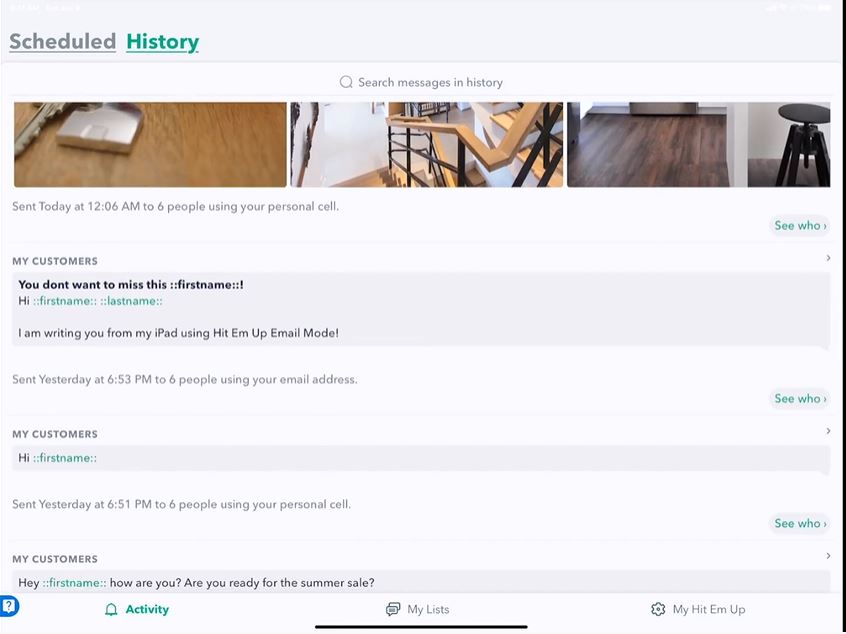
Tap History to see your past messages.